> For the complete documentation index, see [llms.txt](https://docs.hex-rays.com/llms.txt). Markdown versions of documentation pages are available by appending `.md` to page URLs; this page is available as [Markdown](https://docs.hex-rays.com/9.0/user-guide/debugger/debugger-tutorials/mac_debugger_primer2.md).
# Debugging Mac OSX Applications with IDA Pro
## Debugging Mac OSX Applications with IDA Pro
Last updated on March 6, 2021 — v2.0
## Overview
IDA Pro fully supports debugging native macOS applications.
Intel x86/64 debugging has been supported since IDA 5.6 (during OSX 10.5 Leopard), but due to IDA’s use of libc++ we can only officially support debugging on OSX 10.9 Mavericks and later. Apple Silicon arm64 debugging for macOS11 is also supported since IDA 7.6.
Note that this task is riddled with gotchas, and often times it demands precise workarounds that are not required for other platforms. In this tutorial we will purposefully throw ourselves into the various pitfalls of debugging on a Mac, in the hopes that learning things the hard way will ultimately lead to a smoother experience overall.
Begin by downloading samples:
{% file src="/files/LaBhGeUBs4LBBmEPwWul" %}
which contains the sample applications used in this writeup.
## Codesigning & Permissions
It is important to note that a debugger running on macOS requires [special permissions](https://developer.apple.com/documentation/bundleresources/entitlements/com_apple_security_cs_debugger) in order to function properly. This means that the debugger itself must be codesigned in such a way that MacOS allows it to inspect other processes.
The main IDA Pro application is *not* codesigned in this way. Later on we’ll discuss why.
To quickly demonstrate this, let’s open a binary in IDA Pro and try to debug it. In this example we’ll be debugging the **helloworld** app from samples.zip:
{% file src="/files/LaBhGeUBs4LBBmEPwWul" %}
on MacOSX 10.15 Catalina using IDA 7.5. Begin by loading the file in IDA:
```bash
$ alias ida64="/Applications/IDA\ Pro\ 7.5/ida64.app/Contents/MacOS/ida64"
$ ida64 helloworld
```
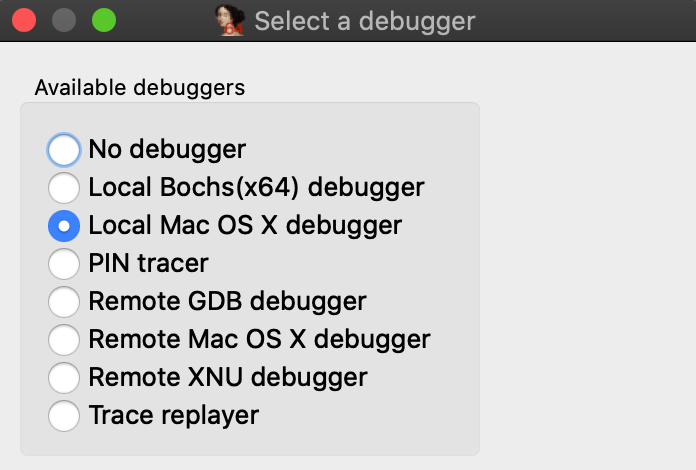
Now go to menu **Debugger>Select debugger** and select **Local Mac OS X Debugger**:
Immediately IDA should print a warning message to the Output window:
```
This program must either be codesigned or run as root to debug mac applications.
```
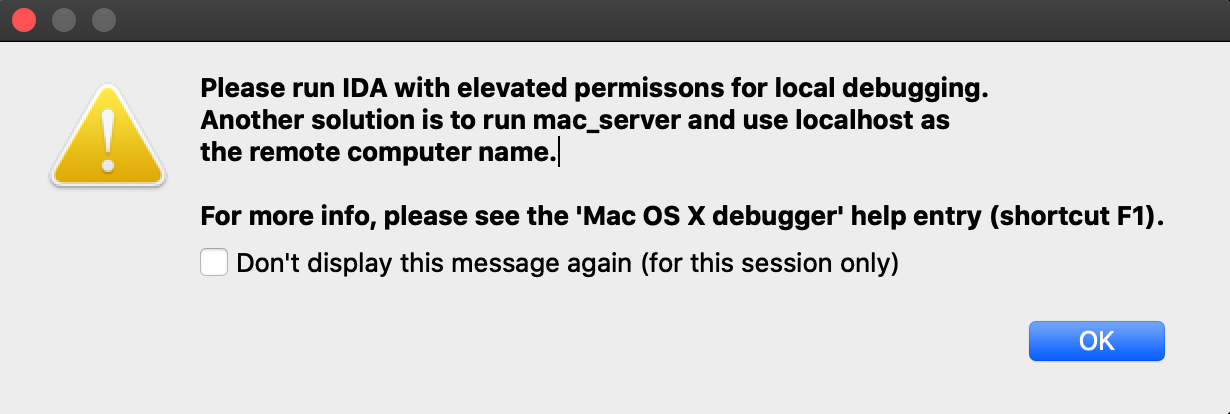
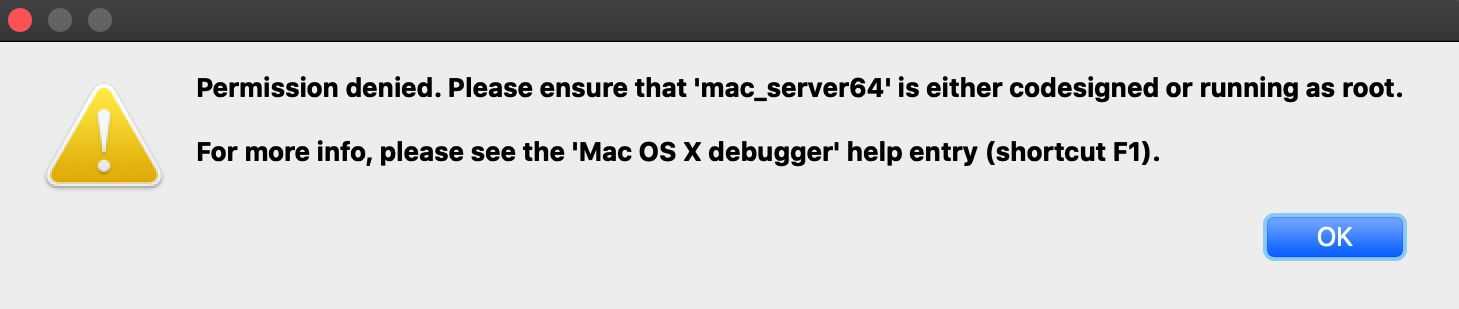
This is because IDA is aware that it is not codesigned, and is warning you that attempting to debug the target application will likely fail. Try launching the application with shortcut **F9**. You will likely get this error message:
Codesigning IDA Pro might resolve this issue, but we have purposefully decided not to do this. Doing so would require refactoring IDA’s internal plugin directory structure so that it abides by Apple’s bundle structure guidelines. This would potentially break existing plugins as well as third-party plugins written by users. We have no plans to inconvenience our users in such a way.
Also note that running IDA as root will allow you to use the Local Mac OS X Debugger without issue, but this is not advisable.
A much better option is to use IDA’s mac debug server - discussed in detail in the next section.
## Using the Mac Debug Server
A good workaround for the debugging restrictions on macOS is to use IDA’s debug server - even when debugging local apps on your mac machine. The mac debug server is a standalone application that communicates with IDA Pro via IPC, so we can ship it pre-codesigned and ready for debugging right out of the box:
```
$ codesign -dvv /Applications/IDA\ Pro\ 7.5/idabin/dbgsrv/mac_server64
Executable=/Applications/IDA Pro 7.5/ida.app/Contents/MacOS/dbgsrv/mac_server64
Identifier=com.hexrays.mac_serverx64
Format=Mach-O thin (x86_64)
CodeDirectory v=20100 size=6090 flags=0x0(none) hashes=186+2 location=embedded
Signature size=9002
Authority=Developer ID Application: Hex-Rays SA (ZP7XF62S2M)
Authority=Developer ID Certification Authority
Authority=Apple Root CA
Timestamp=May 19, 2020 at 4:13:31 AM
```
Let’s try launching the server:
```
$ /Applications/IDA\ Pro\ 7.5/idabin/dbgsrv/mac_server64
IDA Mac OS X 64-bit remote debug server(MT) v7.5.26. Hex-Rays (c) 2004-2020
Listening on 0.0.0.0:23946...
```
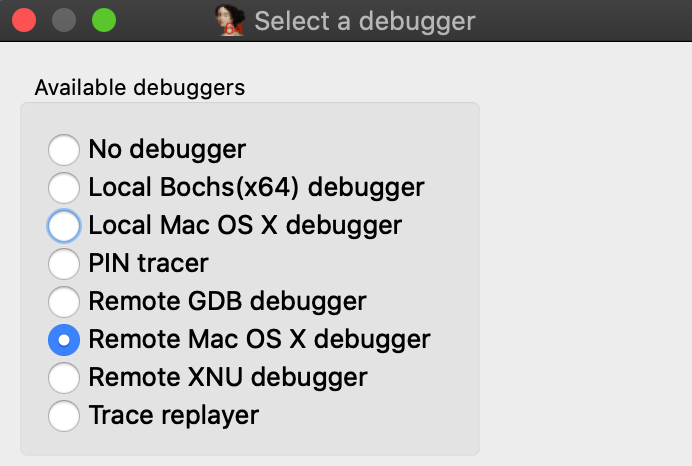
Now go back to IDA and use menu **Debugger>Switch debugger** to switch to remote debugging:
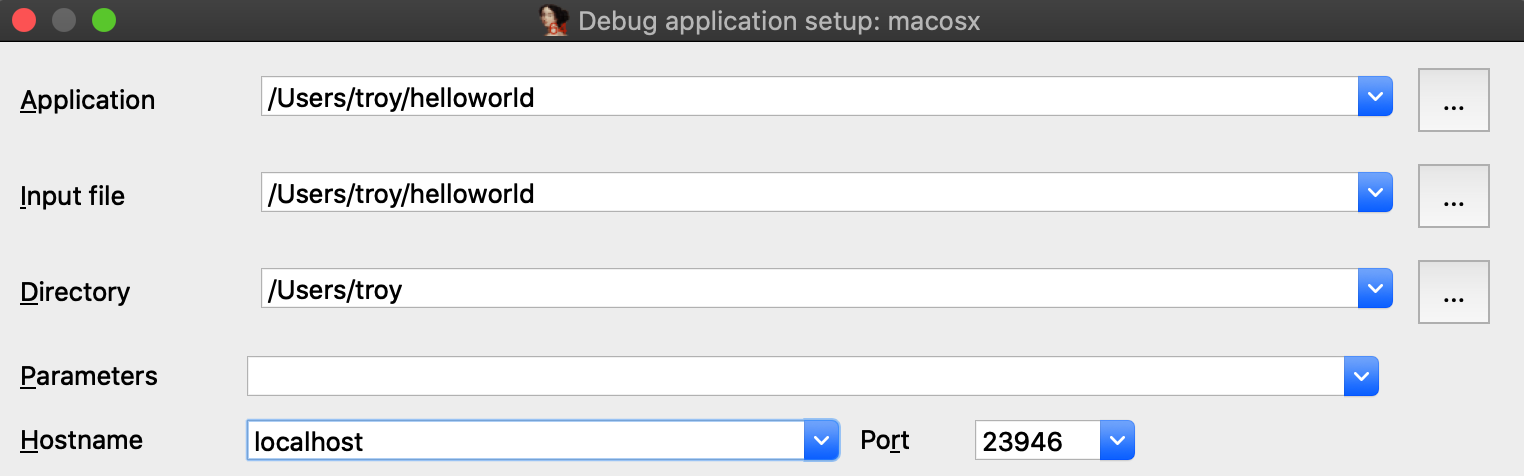
Now use **Debugger>Process options** to set the **Hostname** and **Port** fields to **localhost** and **23946**.
(Note that the port number was printed by mac\_server64 after launching it):
Also be sure to check the option **Save network settings as default** so IDA will remember this configuration.
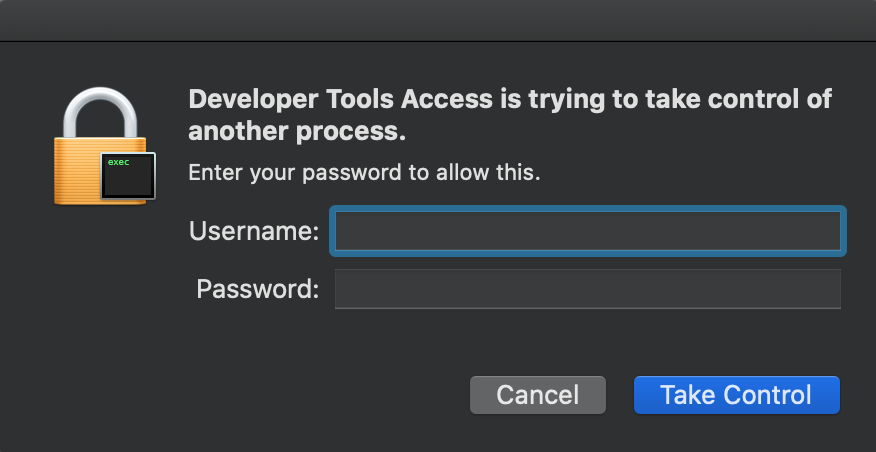
Now go to **\_main** in the helloworld disassembly, press **F2** to set a breakpoint, then **F9** to launch the process. Upon launching the debugger you might receive this prompt from the OS:
macOS is picky about debugging permissions, and despite the fact that mac\_server is properly codesigned you still must explicitly grant it permission to take control of another process. Thankfully this only needs to be done once per login session, so macOS should shut up until the next time you log out (we discuss how to disable this prompt entirely in the [Debugging Over SSH](#debugging-over-ssh) section below).
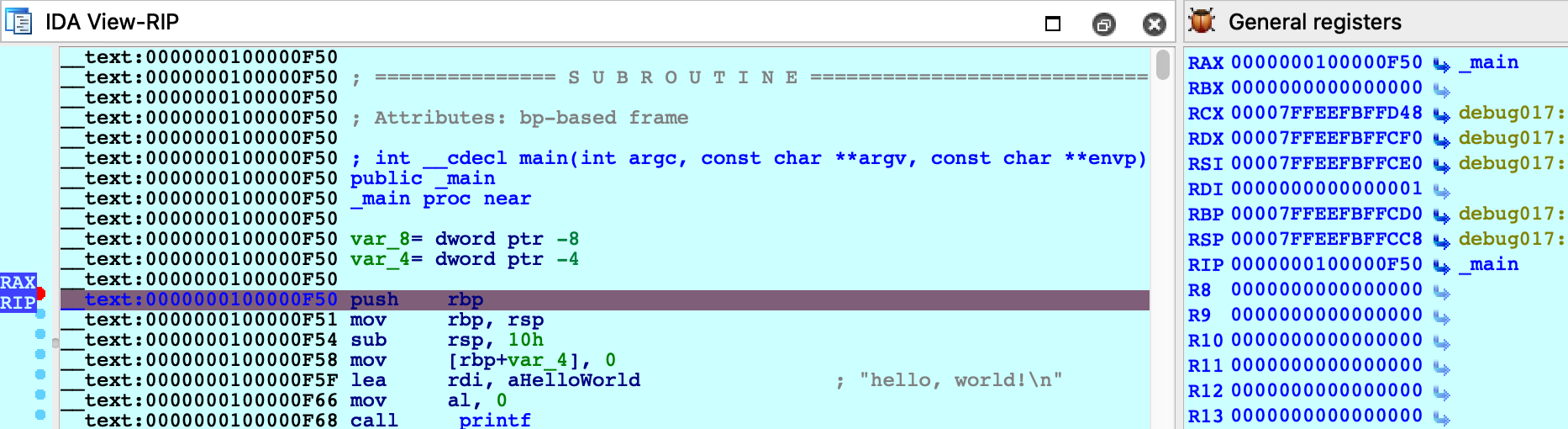
After providing your credentials the debugger should start up without issue:
### Using a Launch Agent
To simplify using the mac server, save the following XML as com.hexrays.mac\_server64.plist in \~/Library/LaunchAgents/:
```xml
Labelcom.hexrays.mac_server64ProgramArguments/Applications/IDA Pro 7.5/dbgsrv/mac_server64-ilocalhostStandardOutPath/tmp/mac_server64.logStandardErrorPath/tmp/mac_server64.logKeepAlive
```
Now mac\_server64 will be launched in the background whenever you log in. You can connect to it from IDA at any time using the **Remote Mac OS X Debugger** option. Hopefully this will make local debugging on macOS almost as easy as other platforms.
## Debugging System Applications
There are some applications that macOS will refuse to allow IDA to debug.
For example, load /System/Applications/Calculator.app/Contents/MacOS/Calculator in IDA and try launching the debugger. You will likely get this error message:
Despite the fact that mac\_server64 is codesigned, it *still* failed to retrieve permission from the OS to debug the target app. This is because Calculator.app and all other apps in /System/Applications/ are protected by [System Integrity Protection](https://support.apple.com/en-us/HT204899) and they cannot be debugged until SIP is [disabled](https://apple.stackexchange.com/questions/208478/how-do-i-disable-system-integrity-protection-sip-aka-rootless-on-macos-os-x). Note that the error message is a bit misleading because it implies that running mac\_server64 as root will resolve the issue - it will not. Not even root can debug apps protected by SIP.
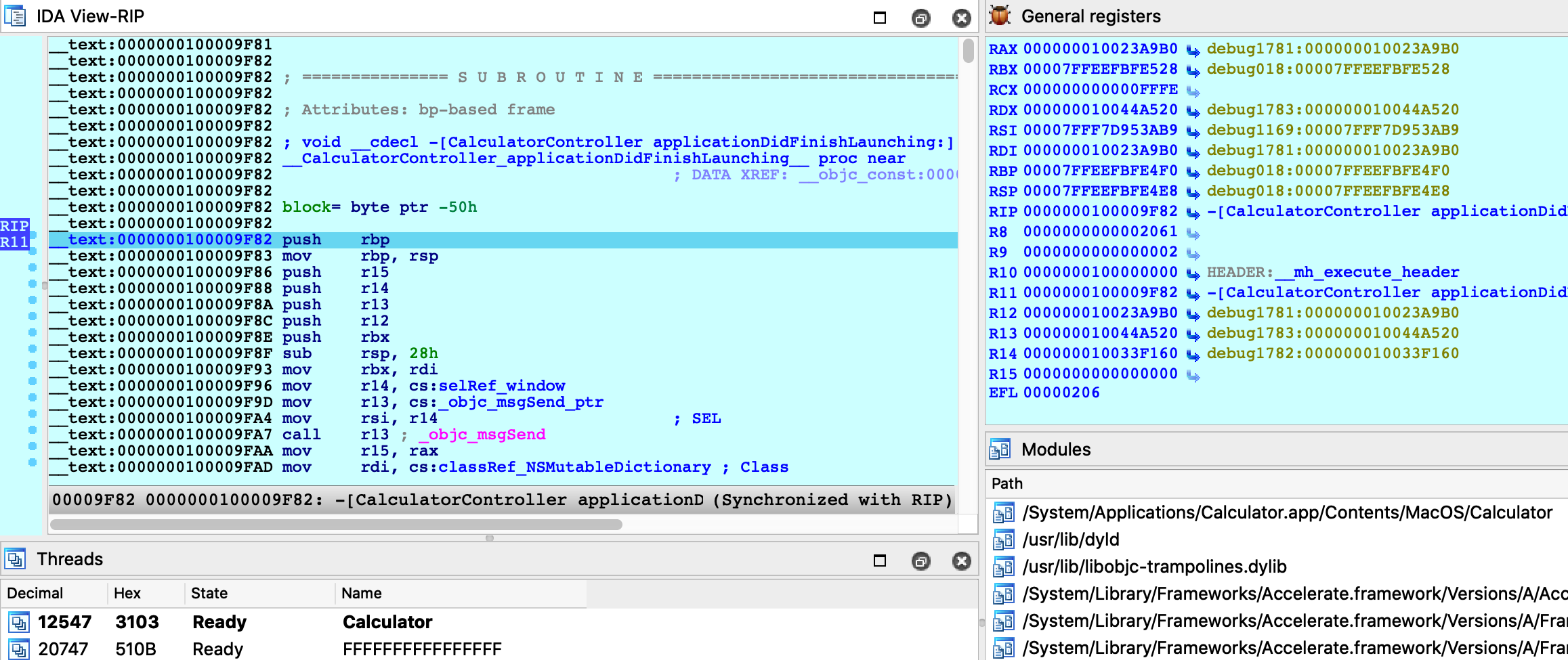
Disabling SIP allows IDA to debug applications like Calculator without issue:
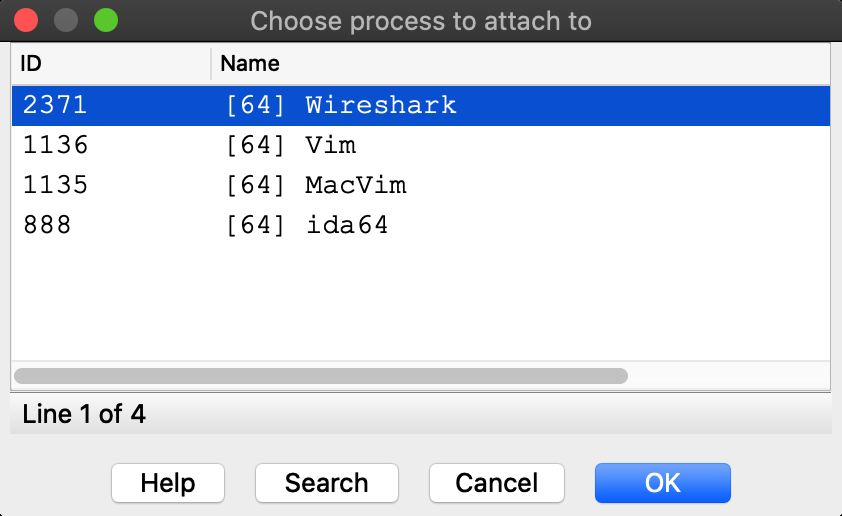
The effects of SIP are also apparent when attaching to an existing process. Try using menu **Debugger>Attach to process**, with SIP enabled there will likely only be a handful of apps that IDA can debug:
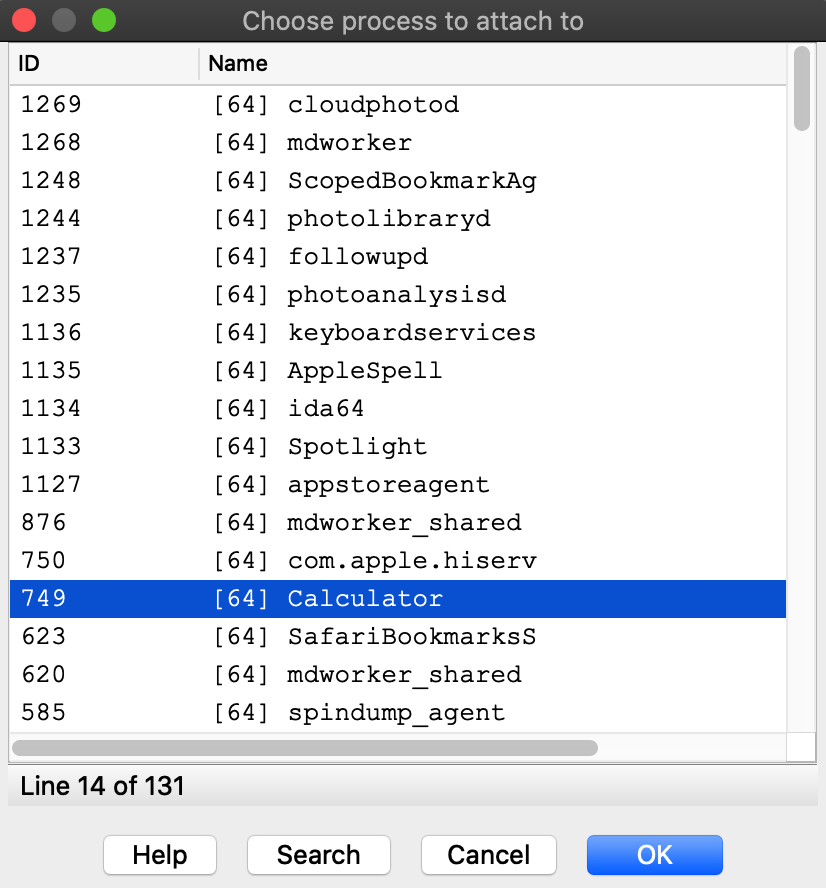
Disabling SIP makes all system apps available for attach:
It is unfortunate that such drastic measures are required to inspect system processes running on your own machine, but this is the reality of MacOS. We advise that you only disable System Integrity Protection when absolutely necessary, or use a virtual machine that can be compromised with impunity.
## Debugging System Libraries
With IDA you can debug any system library in /usr/lib/ or any framework in /System/Library/.
This functionality is fully supported, but surprisingly it is one of the hardest problems the mac debugger must handle. To demonstrate this, let’s try debugging the **\_getaddrinfo** function in libsystem\_info.dylib.
Consider the **getaddrinfo** application from samples.zip:
{% file src="/files/LaBhGeUBs4LBBmEPwWul" %}
```c
#include
#include
#include
#include
#include
#include
#include
int main(int argc, char **argv)
{
if ( argc != 2 )
{
fprintf(stderr, "usage: %s \n", argv[0]);
return 1;
}
struct addrinfo hints;
memset(&hints, 0, sizeof(hints));
hints.ai_family = AF_INET;
hints.ai_flags |= AI_CANONNAME;
struct addrinfo *result;
int code = getaddrinfo(argv[1], NULL, &hints, &result);
if ( code != 0 )
{
fprintf(stderr, "failed: %d\n", code);
return 2;
}
struct sockaddr_in *addr_in = (struct sockaddr_in *)result->ai_addr;
char *ipstr = inet_ntoa(addr_in->sin_addr);
printf("IP address: %s\n", ipstr);
return 0;
}
```
Try testing it out with a few hostnames:
```
$ ./getaddrinfo localhost
IP address: 127.0.0.1
$ ./getaddrinfo hex-rays.com
IP address: 104.26.10.224
$ ./getaddrinfo foobar
failed: 8
```
Now load libsystem\_info.dylib in IDA and set a breakpoint at **\_getaddrinfo**:
```
$ ida64 -o/tmp/libsystem_info /usr/lib/system/libsystem_info.dylib
```
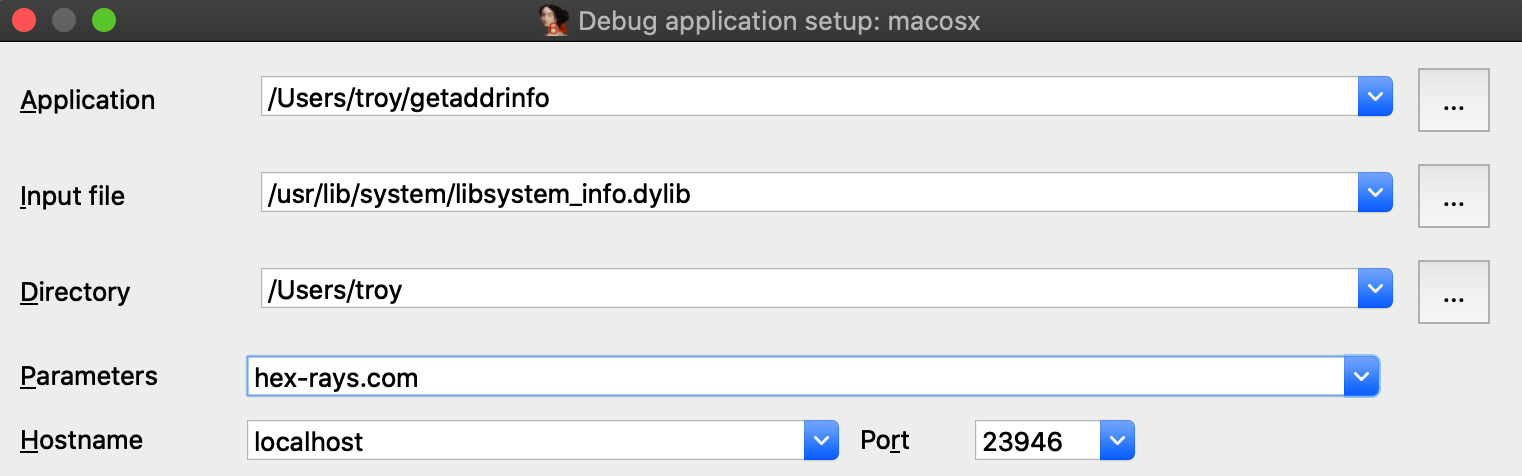
Choose **Remote Mac OS X Debugger** from the Debugger menu and under **Debugger>Process options** be sure to provide a hostname in the **Parameters** field. IDA will pass this argument to the executable when launching it:
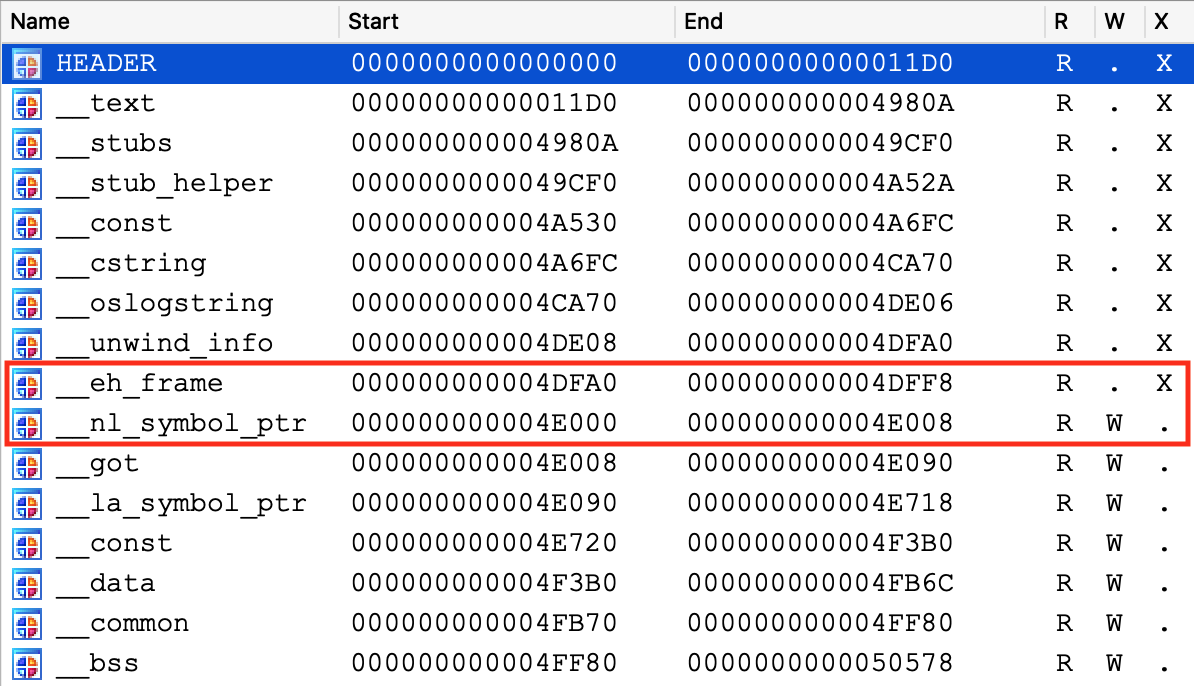
Before launching the process, use **Ctrl+S** to pull up the segment list for libsystem\_info.dylib. Pay special attention to the **\_\_eh\_frame** and **\_\_nl\_symbol\_ptr** segments. Note that they appear to be next to each other in memory:
This will be important later.
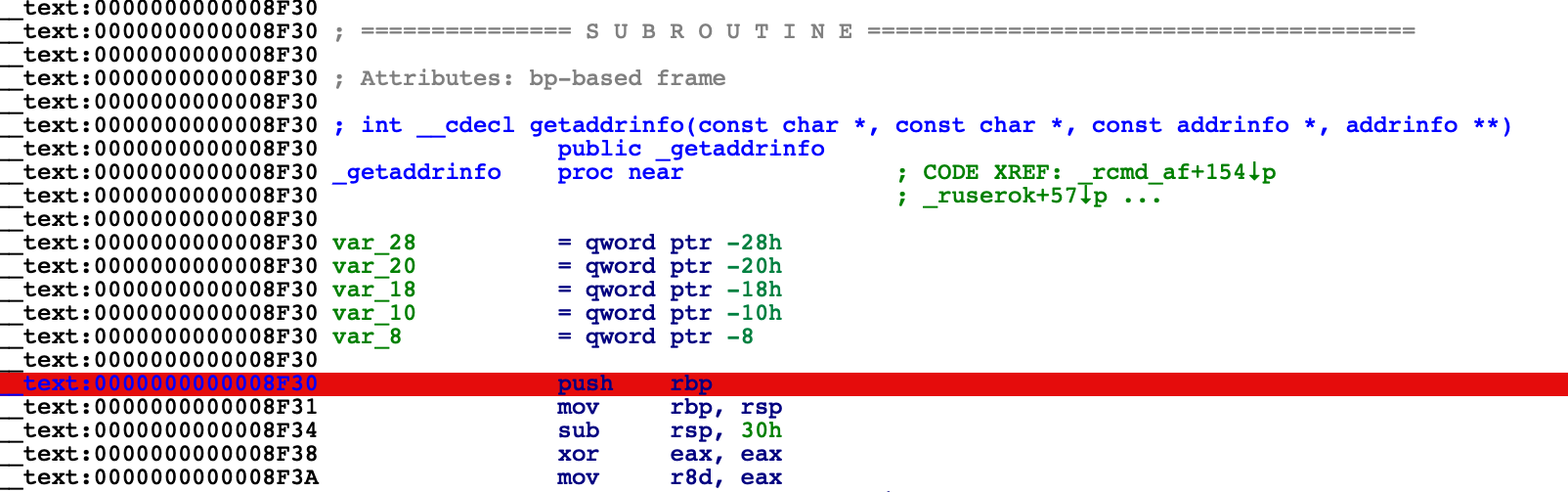
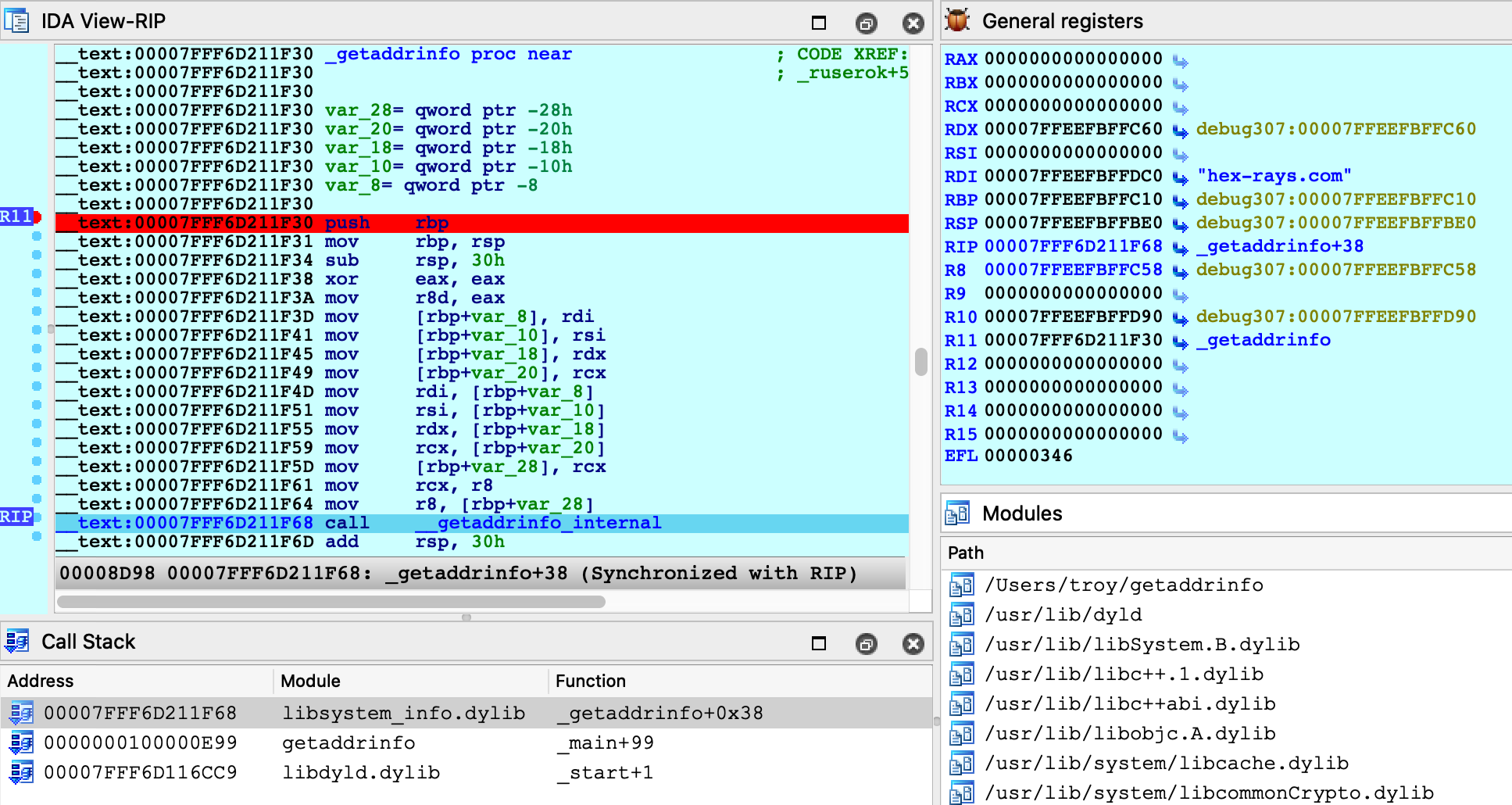
Finally, use **F9** to launch the debugger and wait for our breakpoint at **\_getaddrinfo** to be hit. We can now start stepping through the logic:
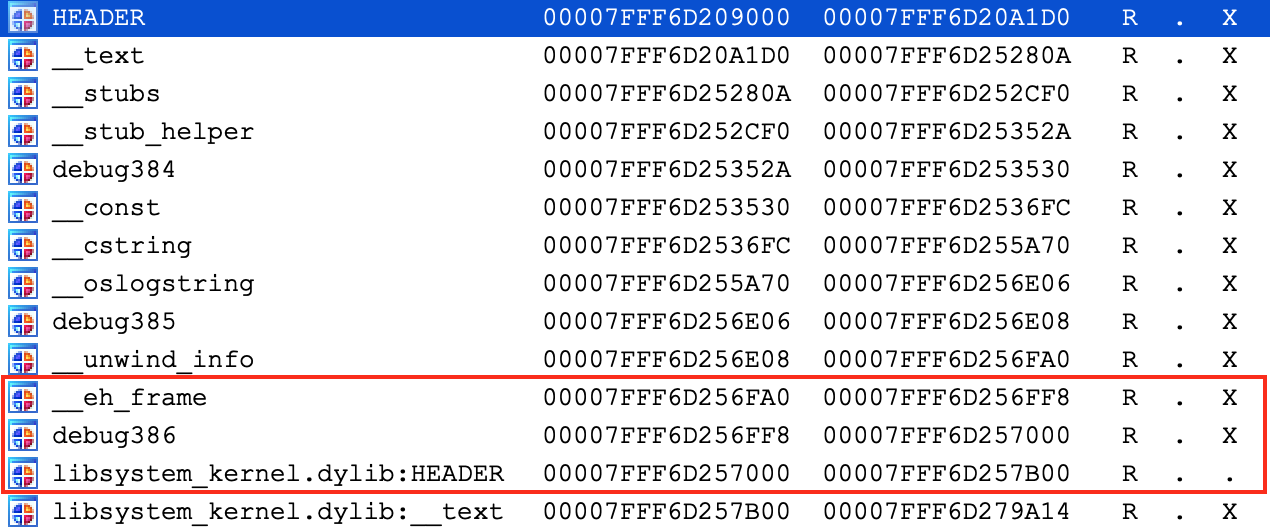
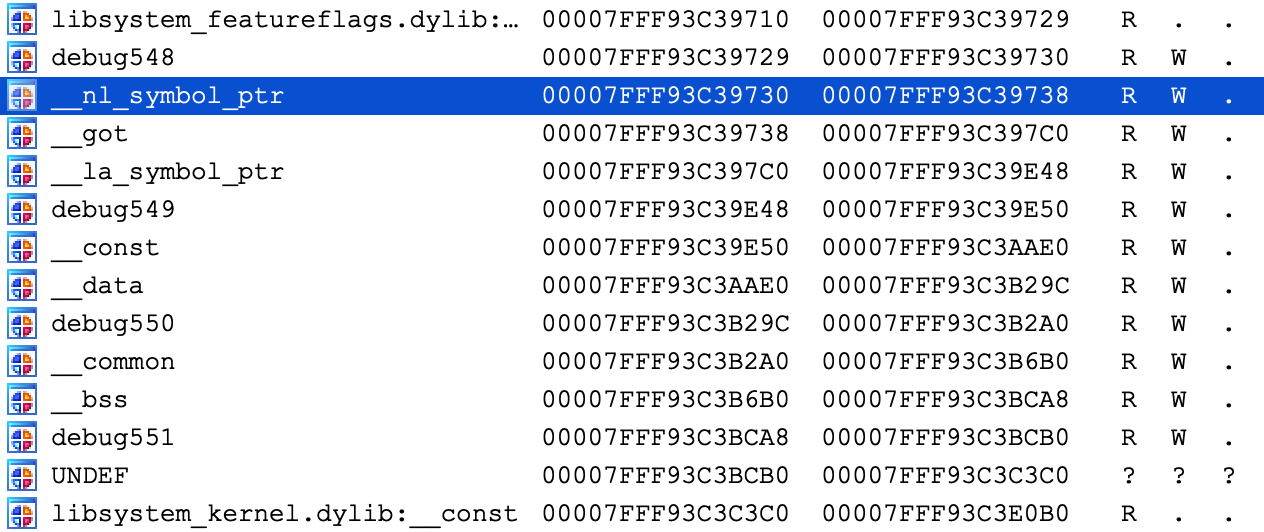
Everything appears to be working normally, but use **Ctrl+S** to pull up the segment information again. We can still see **\_\_eh\_frame**, but it looks like **\_\_nl\_symbol\_ptr** has gone missing:
It is actually still present, but we find it at a much higher address:
Recall that we opened the file directly from the filesystem (/usr/lib/system/libsystem\_info.dylib). However this is actually *not* the file that macOS loaded into memory. The libsystem\_info image in process memory was mapped in from the [dyld\_shared\_cache](http://iphonedevwiki.net/index.php/Dyld_shared_cache), and the library’s segment mappings were modified before it was inserted into the cache.
IDA was able to detect this situation and adjust the database so that it matches the layout in process memory. This functionality is fully supported, but it is not trivial. Essentially the debugger must split your database in half, rebase all code segments to one address, then rebase all data segments to a completely different address.
It is worth noting there is another approach that achieves the same result, but without so much complexity.
### Debugging Modules in dyld\_shared\_cache
As an alternative for the above example, note that you can load any module directly from a dyld\_shared\_cache file and debug it. For example, open the shared cache in IDA:
```
$ ida64 -o/tmp/libsystem_info2 /var/db/dyld/dyld_shared_cache_x86_64h
```
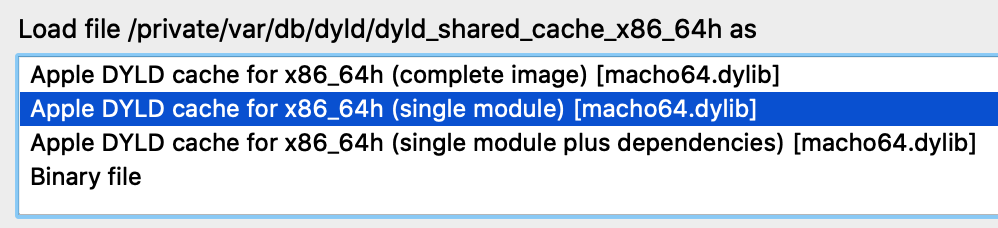
When prompted, select the "single module" option:
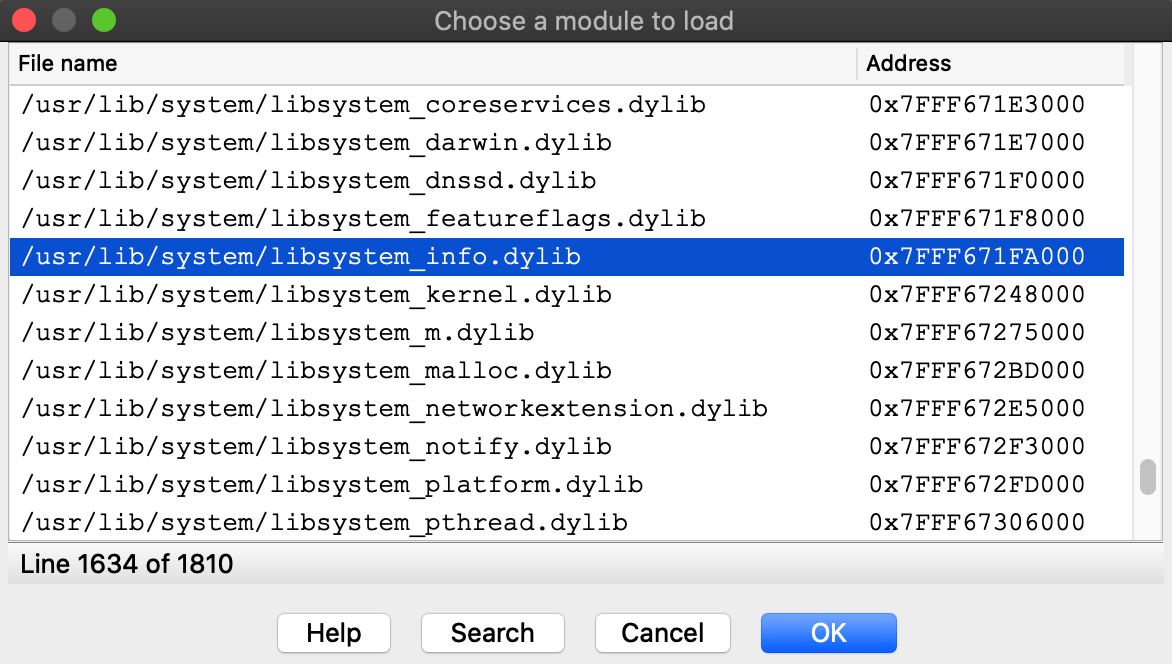
Then choose the libsystem\_info module:
Select the **Remote Mac OS X Debugger** and for **Debugger>Process options** use the exact same options as before:
Now set a breakpoint at **\_getaddrinfo** and launch the process with **F9**.
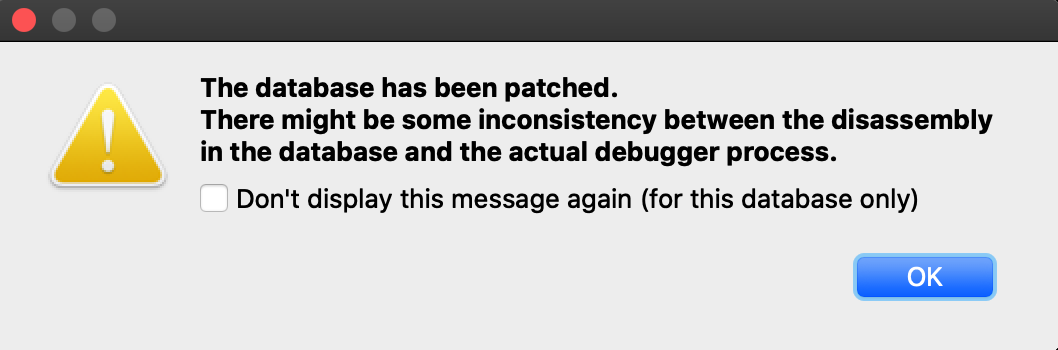
After launching the debugger you might see this warning:
This is normal. Modules from the dyld\_shared\_cache will contain tagged pointers, and IDA patched the pointers when loading the file so that analysis would not be hindered by the tags. IDA is warning us that the patches might cause a discrepancy between the database and the process, but in this case we know it’s ok. Check **Don’t display this message again** and don’t worry about it.
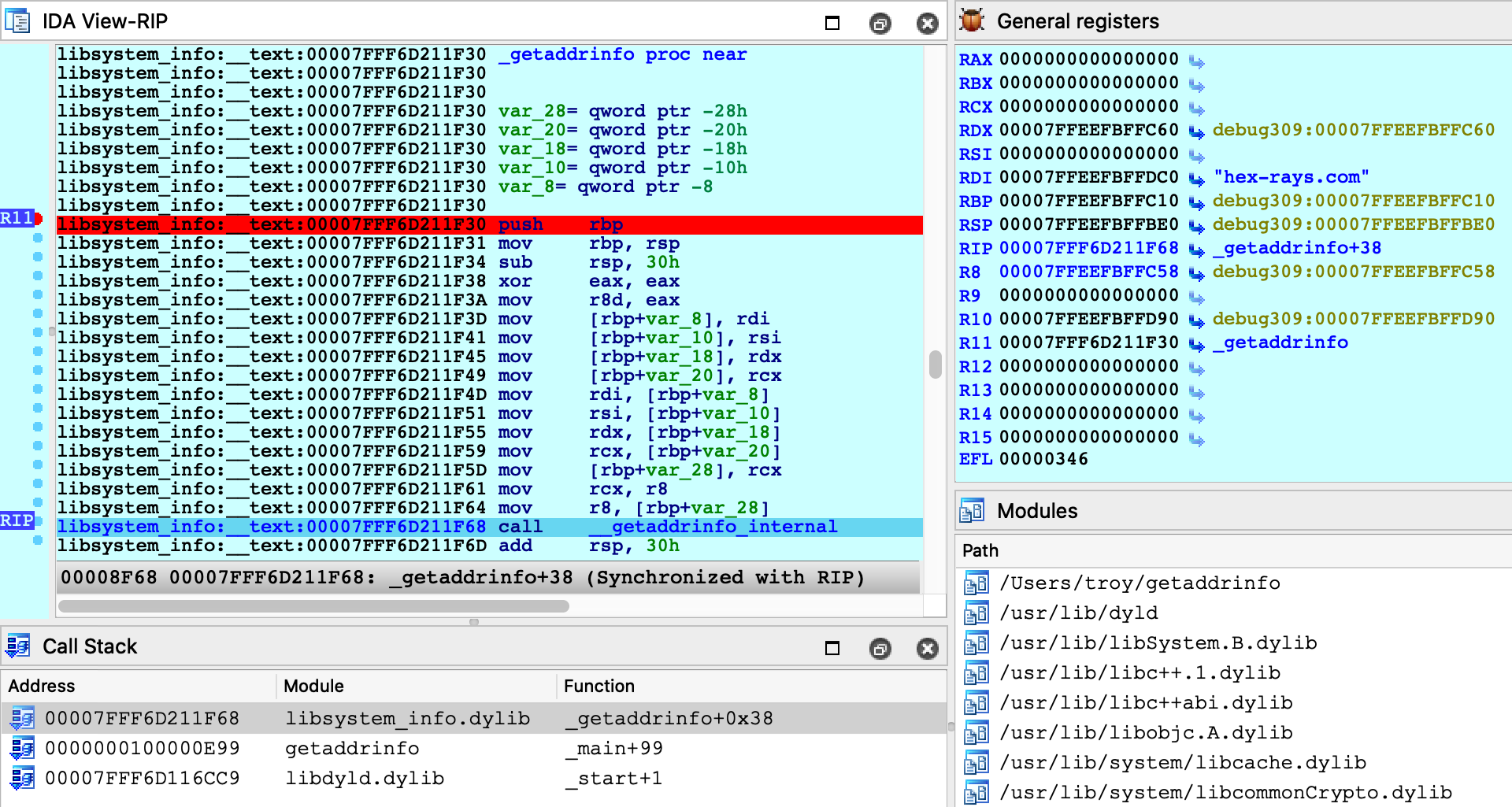
Launching the process should work just like before, and we can start stepping through the function in the shared cache:
This time there was no special logic to map the database into process memory. Since we loaded the module directly from the cache, segment mappings already match what’s expected in the process. Thus only one rebasing operation was required (as apposed to the segment scattering discussed in the previous example).
Both techniques are perfectly viable and IDA goes out of its way to fully support both of them. In the end having multiple solutions to a complex problem is a good thing.
## Debugging Objective-C Applications
When debugging macOS applications it is easy to get lost in some obscure Objective-C framework. IDA’s mac debugger provides tools to make debugging Objective-C code a bit less painful.
Consider the **bluetooth** application from samples.zip:
{% file src="/files/LaBhGeUBs4LBBmEPwWul" %}
```c
#import
int main(void)
{
NSArray *devices = [IOBluetoothDevice pairedDevices];
int count = [devices count];
for ( int i = 0; i < count; i++ )
{
IOBluetoothDevice *device = [devices objectAtIndex:i];
NSLog(@"%@:\n", [device name]);
NSLog(@" paired: %d\n", [device isPaired]);
NSLog(@" connected: %d\n", [device isConnected]);
}
return 0;
}
```
The app will print all devices that have been paired with your host via Bluetooth. Try running it:
```
$ ./bluetooth
2020-05-22 16:27:14.443 bluetooth[17025:15645888] Magic Keyboard:
2020-05-22 16:27:14.443 bluetooth[17025:15645888] paired: 1
2020-05-22 16:27:14.443 bluetooth[17025:15645888] connected: 1
2020-05-22 16:27:14.443 bluetooth[17025:15645888] Apple Magic Mouse:
2020-05-22 16:27:14.443 bluetooth[17025:15645888] paired: 1
2020-05-22 16:27:14.443 bluetooth[17025:15645888] connected: 1
2020-05-22 16:27:14.443 bluetooth[17025:15645888] iPhone SE:
2020-05-22 16:27:14.443 bluetooth[17025:15645888] paired: 0
2020-05-22 16:27:14.443 bluetooth[17025:15645888] connected: 0
```
Let’s try debugging this app. First consider the call to method +\[IOBluetoothDevice pairedDevices]:
If we execute a regular instruction step with **F7**, IDA will step into the **\_objc\_msgSend** function in libobjc.A.dylib, which is probably not what we want here. Instead use shortcut **Shift+O**. IDA will automatically detect the address of the Objective-C method that is being invoked and break at it:
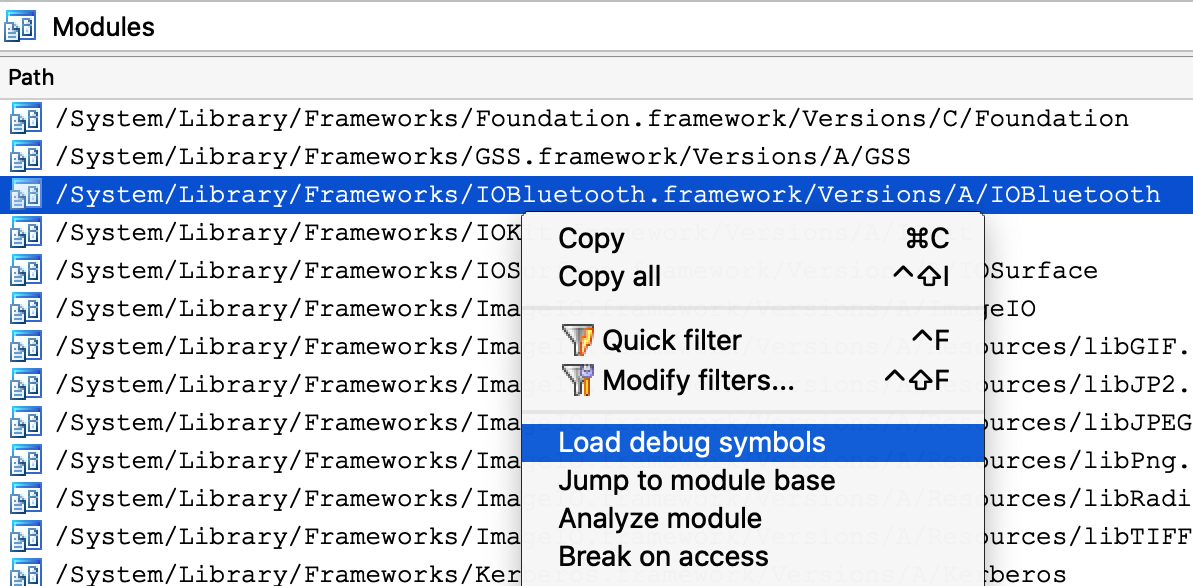
This module appears to be Objective-C heavy, so it might be a good idea to extract Objective-C type info from the module using right click -> **Load debug symbols** in the Modules window:
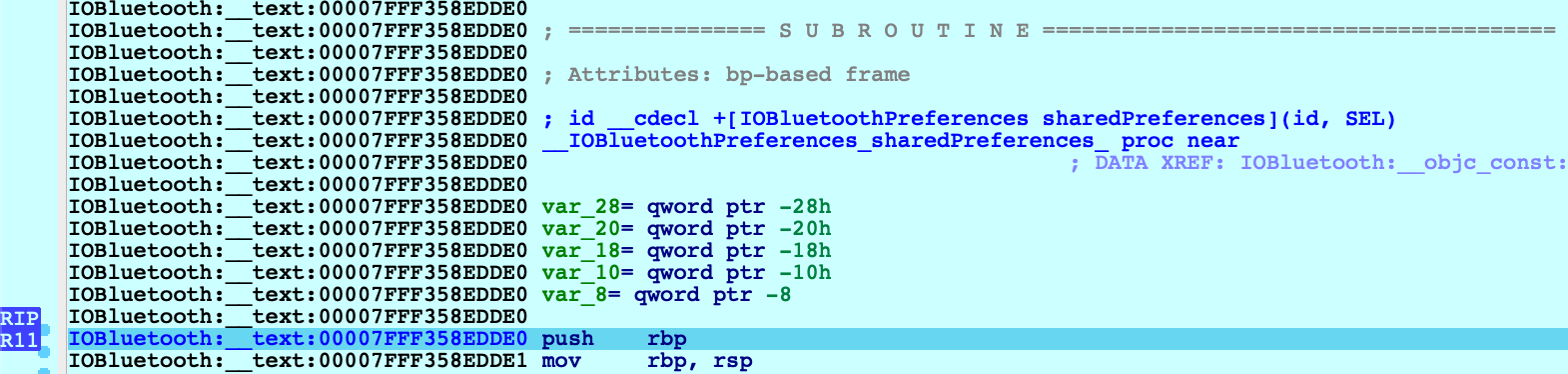
This operation will extract any Objective-C types encoded in the module, which should give us some nice prototypes for the methods we’re stepping in:
Let’s continue to another method call - but this time the code invokes a stub for **\_objc\_msgSend** that IDA has not analyzed yet, so its name has not been properly resolved:
In this case **Shift+O** should still work:
**Shift+O** is purposefully flexible so that it can be invoked at any point before a direct or indirect call to **\_objc\_msgSend**. It will simply intercept execution at the function in libobjc.A.dylib and use the arguments to calculate the target method address.
However, you must be careful. If you use this action in a process that does *not* call **\_objc\_msgSend**, you will lose control of the process. It is best to only use it when you’re certain the code is compiled from Objective-C and an **\_objc\_msgSend** call is imminent.
### Decompiling Objective-C at Runtime
The Objective-C runtime analysis performed by **Load debug symbols** will also improve decompilation.
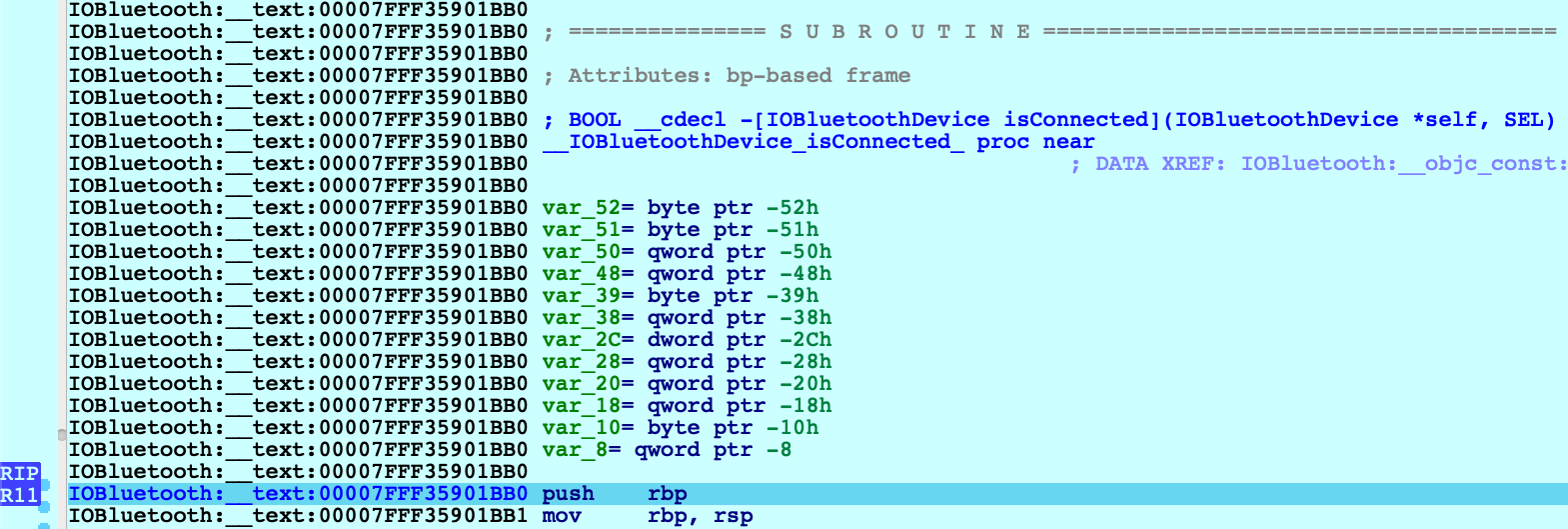
Consider the method -\[IOBluetoothDevice isConnected]:
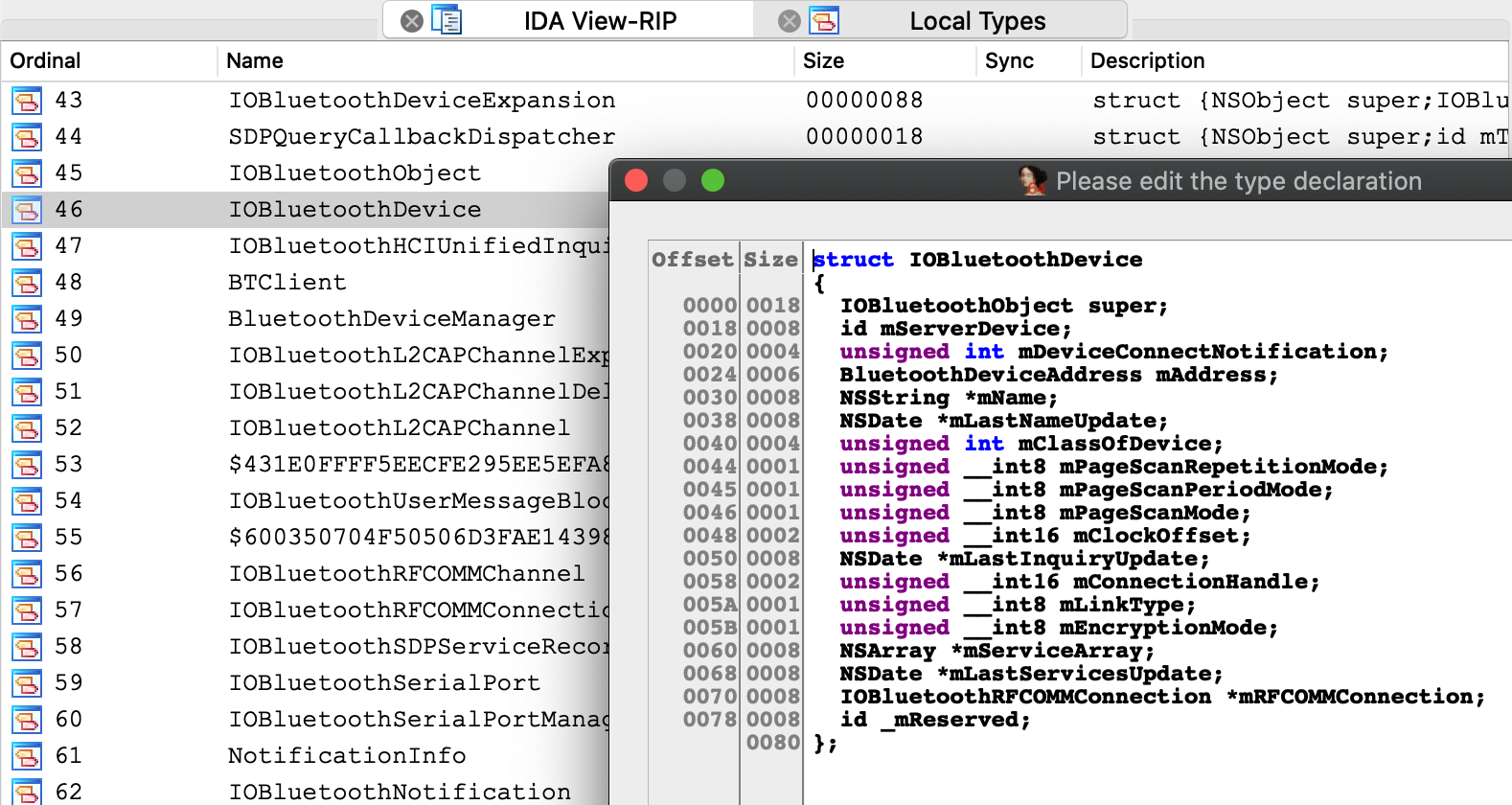
Before we start stepping through this method we might want to peek at the pseudocode to get a sense of how it works. Note that the Objective-C analysis created local types for the **IOBluetoothDevice** class, as well as many other classes:
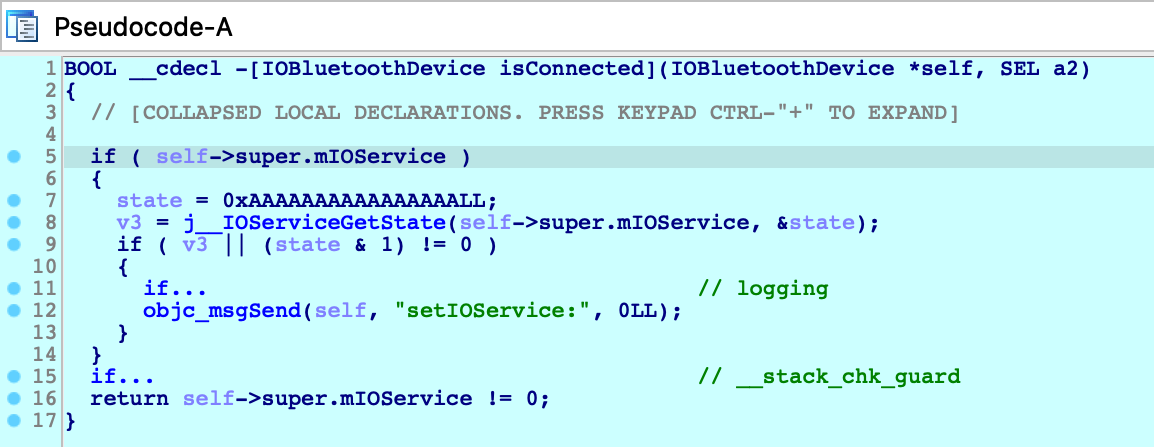
This type info results in some sensible pseudocode:
We knew nothing about this method going in - but it’s immediately clear that device connectivity is determined by the state of an **io\_service\_t** handle in the **IOBluetoothObject** superclass, and we’re well on our way.
## Debugging Over SSH
In this section we will discuss how to remotely debug an app on a mac machine using only an SSH connection. Naturally, this task introduces some unique complications.
To start, copy the mac\_server binaries and the **bluetooth** app from samples.zip:
{% file src="/files/LaBhGeUBs4LBBmEPwWul" %}
to the target machine:
```
$ scp /dbgsrv/mac_server* user@remote:
$ scp bluetooth user@remote:
```
Now ssh to the target machine and launch the mac\_server:
```
$ ssh user@remote
user@remote:~$ ./mac_server64
IDA Mac OS X 64-bit remote debug server(MT) v7.5.26. Hex-Rays (c) 2004-2020
Listening on 0.0.0.0:23946...
```
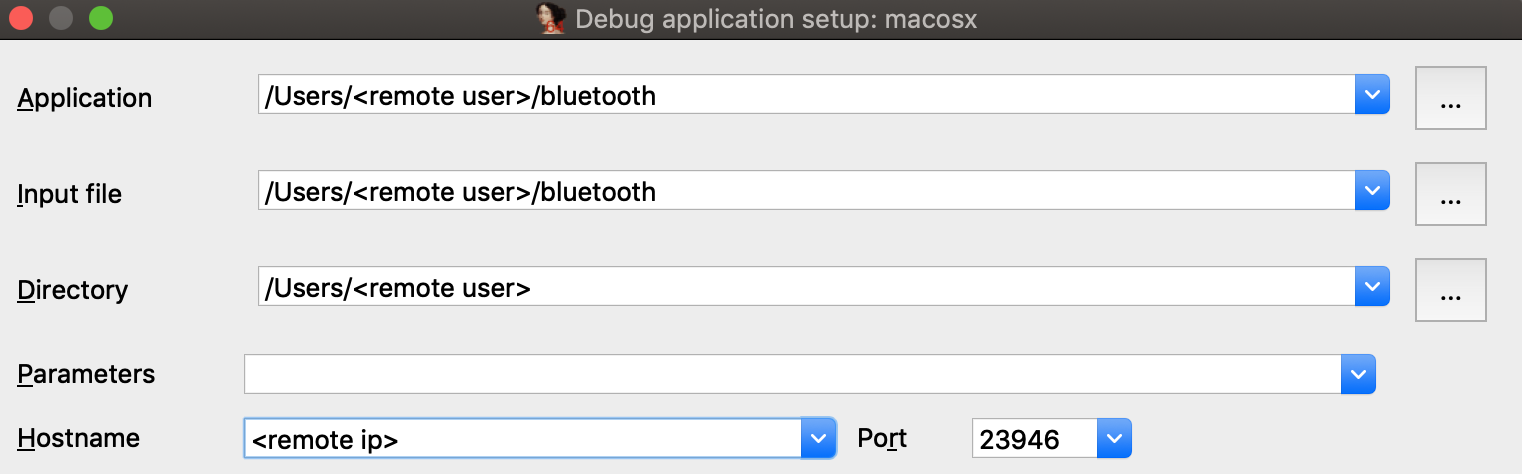
Now open the **bluetooth** binary on the machine with your IDA installation, select **Remote Mac OS X Debugger** from the debugger menu, and for **Debugger>Process options** set the debugging parameters. Be sure to replace **\** and **\** with the username and ip address of the target machine:
Try launching the debugger with **F9**. You might get the following error message:
This happened because debugging requires manual authentication from the user for every login session (via the **Take Control** prompt discussed under [Using the Mac Debug Server](#using-the-mac-debug-server), above).
But since we’re logged into the mac via SSH, the OS has no way of prompting you with the authentication window and thus debugging permissions are refused.
Note that mac\_server64 might have printed this workaround:
```
WARNING: The debugger could not acquire the necessary permissions from the OS to
debug mac applications. You will likely have to specify the proper credentials at
process start. To avoid this, you can set the MAC_DEBMOD_USER and MAC_DEBMOD_PASS
environment variables.
```
But this is an extreme measure. As an absolute last resort you can launch the mac\_server with your credentials in the environment variables, which should take care of authentication without requiring any interaction with the OS. However there is a more secure workaround.
In your SSH session, terminate the mac\_server process and run the following command:
```
$ security authorizationdb read system.privilege.taskport > taskport.plist
```
Edit taskport.plist and change the **authenticate-user** option to **false**:
```xml
authenticate-user
```
Then apply the changes:
```
$ sudo security authorizationdb write system.privilege.taskport < taskport.plist
```
This will completely disable the debugging authentication prompt (even across reboots), which should allow you to use the debug server over SSH without macOS bothering you about permissions.
### Dealing With Slow Connections
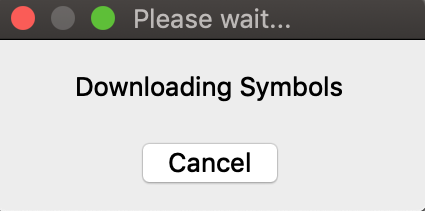
When debugging over SSH you might experience some slowdowns. For example you might see this dialog appear for several seconds when starting the debugger:
During this operation IDA is fetching function names from the symbol tables for all dylibs that have been loaded in the target process. It is a critical task (after all we want our stack traces to look nice), but it is made complicated by the sheer volume of dylibs loaded in a typical macOS process due to the dyld\_shared\_cache. This results in several megabytes of raw symbol names that mac\_server must transmit over the wire every time the debugger is launched.
We can fix this by using the same trick that IDA’s [Remote iOS Debugger](https://www.hex-rays.com/wp-content/static/tutorials/ios_debugger_primer2/ios_debugger_primer2.html) uses to speed up debugging - by extracting symbol files from the dyld cache and parsing them locally. Start by downloading the [ios\_deploy](https://www.hex-rays.com/products/ida/support/ida/ios_deploy.zip) utility from our downloads page, and copy it to the remote mac:
```
$ scp ios_deploy user@remote:
```
Then SSH to the remote mac and run it:
```
$ ./ios_deploy symbols -c /var/db/dyld/dyld_shared_cache_x86_64h -d mac_symbols
Extracting symbols from /var/db/dyld/dyld_shared_cache_x86_64h => mac_symbols
Extracting symbol file: 1813/1813
mac_symbols: done
$ zip -r mac_symbols.zip mac_symbols
```
Copy mac\_symbols.zip from the remote machine to your host machine and unzip it. Then open **Debugger>Debugger options>Set specific options** and set the **Symbol path** field:
Now try launching the debugger again, it should start up much faster.
Also keep the following in mind:
* Use /var/db/dyld/dyld\_shared\_cache\_i386 if debugging 32-bit apps
* You must perform this operation after every macOS update. Updating the OS will update the dyld\_shared\_cache, which invalidates the extracted symbol files.
* The ios\_deploy utility simply invokes **dyld\_shared\_cache\_extract\_dylibs\_progress** from the **dsc\_extractor.bundle** library in Xcode. If you don’t want to use ios\_deploy there are likely other third-party tools that do something similar.
## Debugging arm64 Applications on Apple Silicon
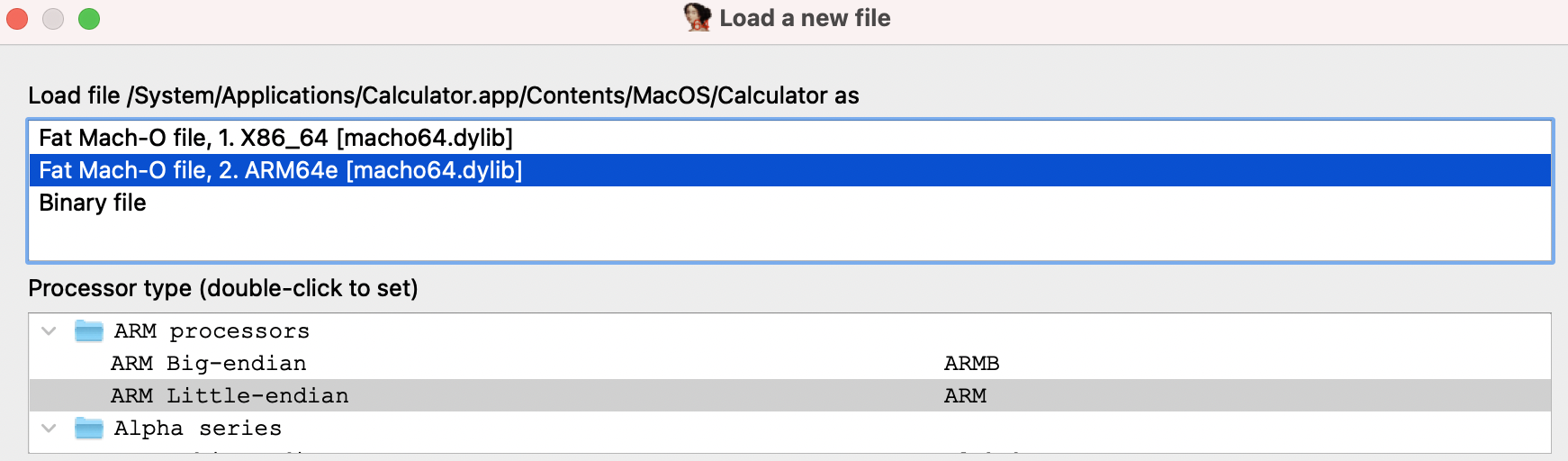
IDA 7.6 introduced the ARM Mac Debugger, which can debug any application that runs natively on Apple Silicon.
On Apple Silicon, the same rules apply (see [Codesigning & Permissions](#codesigning-and-permissions) above). The Local ARM Mac Debugger can only be used when run as root, so it is better to use the Remote ARM Mac Debugger with the debug server (mac\_server\_arm64), which can debug any arm64 app out of the box (see [Using the Mac Debug Server](#using-the-mac-debug-server)).
We have included arm64 versions of the [sample binaries](https://www.hex-rays.com/wp-content/uploads/2020/05/samples.zip) used in the previous examples. We encourage you to go back and try them. They should work just as well on Apple Silicon.
### Debugging arm64e System Applications
Similar to Intel Macs, IDA cannot debug system apps on Apple Silicon until System Integrity Protection is disabled.
But here macOS introduces another complication. All system apps shipped with macOS are built for arm64e - and thus have pointer authentication enabled. This is interesting because ptruath-enabled processes are treated much differently within the XNU kernel. All register values that typically contain pointers (PC, LR, SP, and FP) will be signed and authenticated by PAC.
Thus, if a debugger wants to modify the register state of an arm64e process, it must know how to properly sign the register values. Only arm64e applications are allowed to do this (canonically, at least).
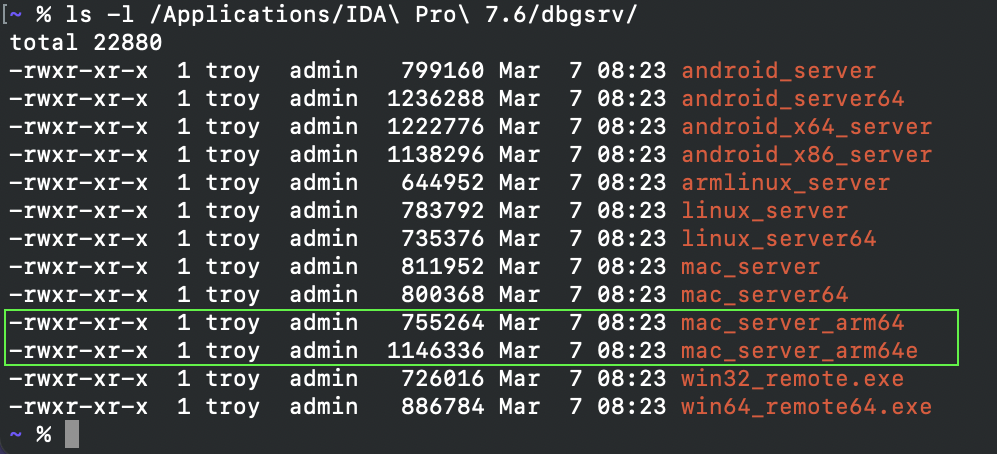
You may have noticed that IDA 7.6 ships with two versions of the arm64 debug server:
**mac\_server\_arm64e** is built specifically for the arm64e architecture, and thus will be able to properly inspect other arm64e processes. We might want to try running this version right away, but by default macOS will refuse to run any third-party software built for arm64e:
[According to Apple](https://developer.apple.com/forums/thread/652340), this is because the arm64e ABI is not stable enough to be used generically. In order to run third-party arm64e binaries you must enable the following boot arg:
```
$ sudo nvram boot-args=-arm64e_preview_abi
```
After rebooting you can finally run mac\_server\_arm64e:
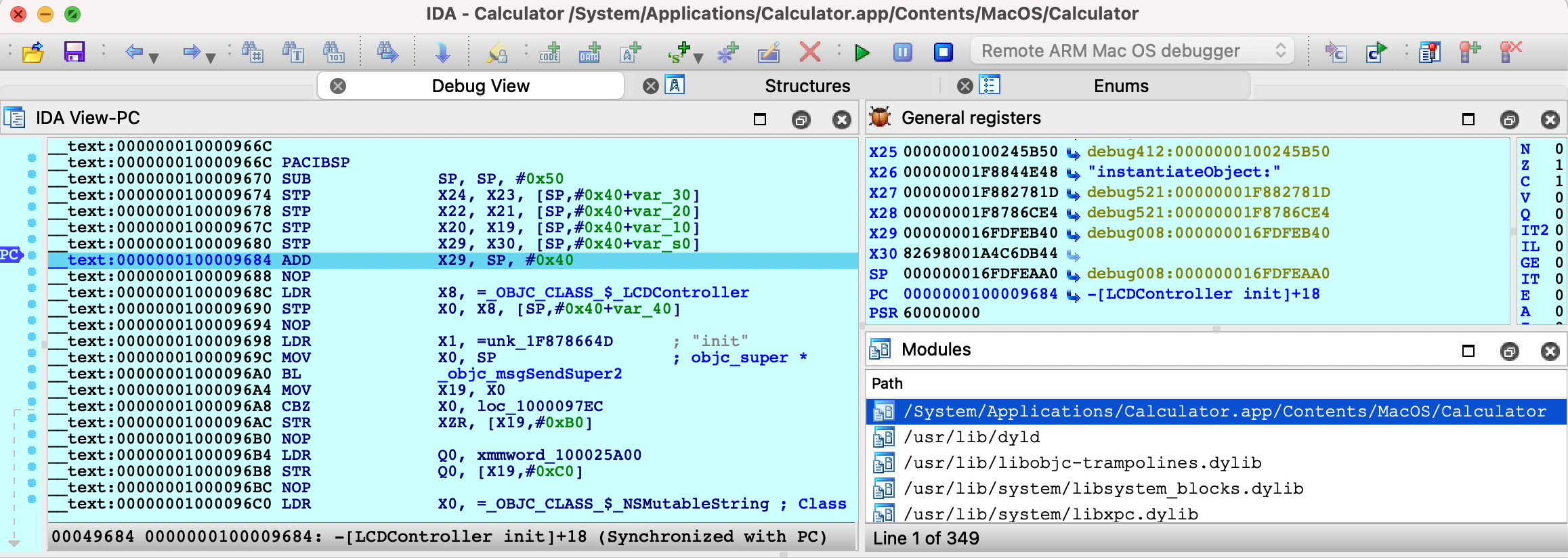
This allows you to debug any system application (e.g. /System/Applications/Calculator.app) without issue:
Also note that the arm64e ABI limitation means you cannot use the **Local** ARM Mac Debugger to debug system arm64e apps, since IDA itself is not built for arm64e. It is likely that Apple will break the arm64e ABI in the future and IDA might cease to work. We want to avoid this scenario entirely.
Using the Remote ARM Mac Debugger with mac\_server\_arm64e is a nice workaround. It guarantees ida.app will continue to work normally regardless of any breakages in the arm64e ABI, and we can easily ship new arm64e builds of the server to anybody who needs it.
### Apple Silicon: TL;DR
To summarize:
* Use **mac\_server\_arm64** if you’re debugging third-party arm64 apps that aren’t protected by SIP
* Use **mac\_server\_arm64e** if you’re feeling frisky and want to debug macOS system internals. You must disable SIP and enable **nvram boot-args=-arm64e\_preview\_abi**, then you can debug any app you want (arm64/arm64e apps, system/non-system apps, shouldn’t matter).
## Support
If you have any questions about this writeup or encounter any issues with the debugger itself in your environment, don’t hesitate to contact us at .
Our Mac support team has years of experience keeping the debugger functional through rapid changes in the Apple developer ecosystem. It is likely that we can resolve your issue quickly.
---
# Agent Instructions
This documentation is published with GitBook. GitBook is the documentation platform designed so that both humans and AI agents can read, navigate, and reason over technical content effectively. Learn more at gitbook.com.
## Querying This Documentation
If you need additional information that is not directly available in this page, you can query the documentation by asking a question.
Perform an HTTP GET request on the following URL with the `ask` and `goal` query parameters:
```
GET https://docs.hex-rays.com/9.0/user-guide/debugger/debugger-tutorials/mac_debugger_primer2.md?ask=&goal=
```
`ask` is the immediate question: it should be specific, self-contained, and written in natural language.
`goal` is what the user is ultimately trying to achieve, the reason they need the answer. Sharing it helps GitBook give you a better, more relevant answer. A goal is most helpful when it describes the outcome the user wants rather than restating the question. For example, with `ask=how do I create an API token`, a goal like `automate deployments from our CI pipeline` lets GitBook tailor the answer to that use case.
The response will contain a direct answer to the question and relevant excerpts and sources from the documentation.
Use this mechanism when the answer is not explicitly present in the current page, you need clarification or additional context, or you want to retrieve related documentation sections.